Everyone you photograph, gathered.
Faces are recognised on your Mac. Name someone once and every photo of them is a click away.
A photo library for external drives · macOS
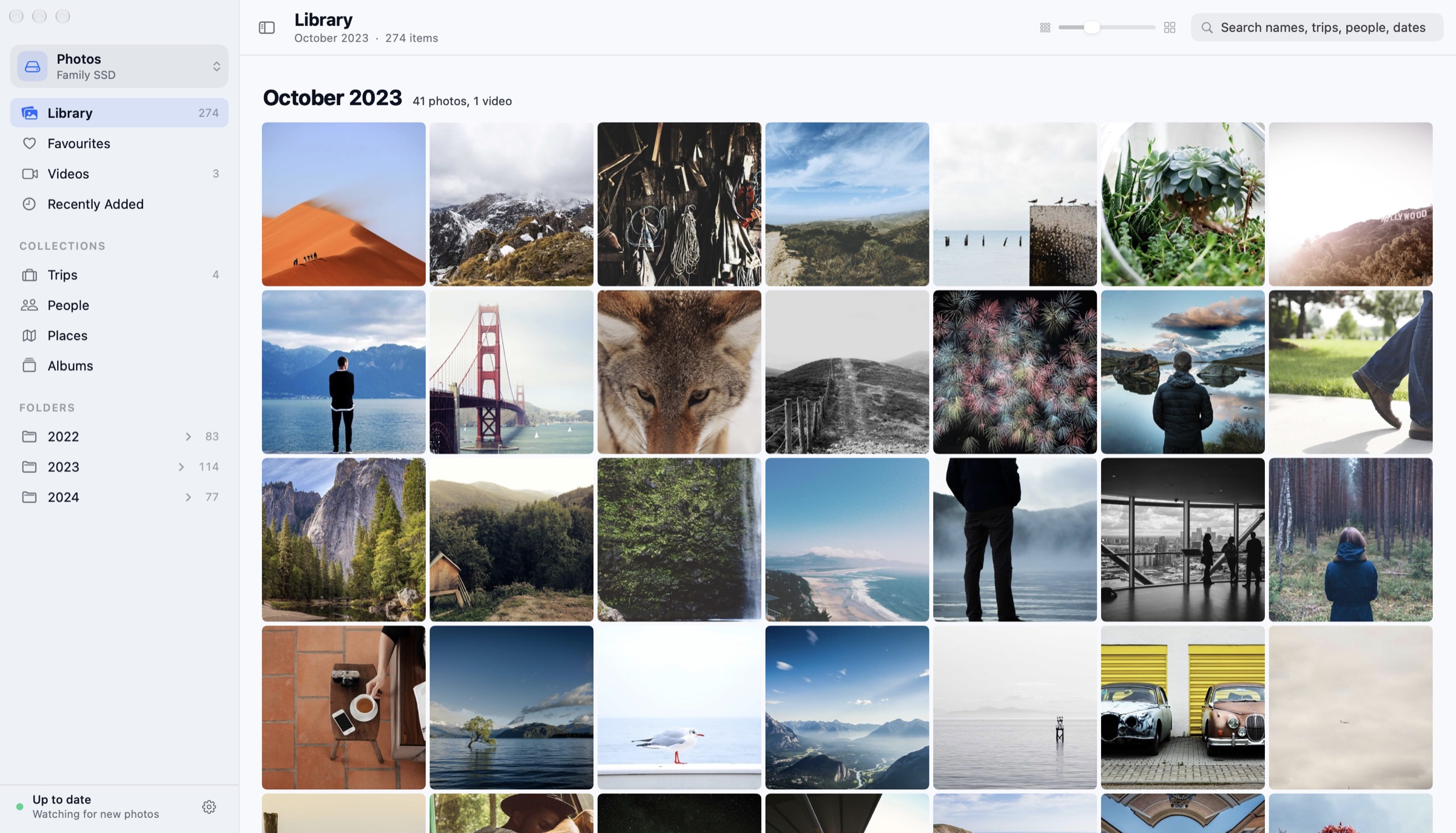
Pocket Album turns the folder of photos on your drive into a library you’ll want to open: sorted by date, gathered into trips and people, and updated the moment you add more.
 Finder
Pocket Album
Drag to compare. Same folder, same files.
01 — The library
No importing, no tagging, no setup wizard. Pocket Album reads what is already on the drive and gives it the shape a photo collection should have.
Months and years instead of file names. Scroll through a decade in seconds, or jump straight to the year you’re after.
02 — The organising
Faces are recognised on your Mac. Name someone once and every photo of them is a click away.
The folder is watched. Copy this month’s backup in and the library is current before you switch windows.
Plug the SSD into any Mac and carry on exactly where you left off.
Photos stack up where they were taken and split apart as you zoom.
Live Photos are reunited with their movie half. Lost dates are recovered from file names.
03 — Getting started
Pick the folder on your drive, or drop it on the window. Every subfolder is included, however deep.
Photos appear as they’re indexed, newest first. You can start browsing straight away.
Trips sort themselves. People need one thing from you: a name, once.
04 — Trust
Photos are opened for reading and nothing else. There is no code in the app that can rename, edit, move or delete them.
No account, no cloud, no analytics. The only request it ever makes is to Apple Maps, to turn coordinates into a place name.
Your folders stay exactly as you arranged them. Delete the app tomorrow and you still have a plain folder of photos.
05 — Questions
Yes. There is no trial, no subscription and no account to create.
That is what it was built for. Export your originals, copy them to your drive in whatever folders you like, and point Pocket Album at the top one.
A test library of 7,680 small photos indexed in about 20 seconds on an M2 Mac. Full-size iPhone photos take longer, and finding faces carries on quietly in the background. Each photo is only ever read once.
One hidden folder, .pocketalbum, inside the folder you chose. It holds the index, thumbnails and face groups, and is usually a percent or two of the size of your photos. Deleting it is always safe.
Clear faces group reliably. If one person ends up split in two, the app suggests the match and you confirm it with one click. Your corrections are never undone.
exFAT drives work fully. NTFS drives are read-only on a Mac, so the index is kept on your Mac instead and doesn’t travel with the drive.